
How to edit a photo by chatting with BanaSnap
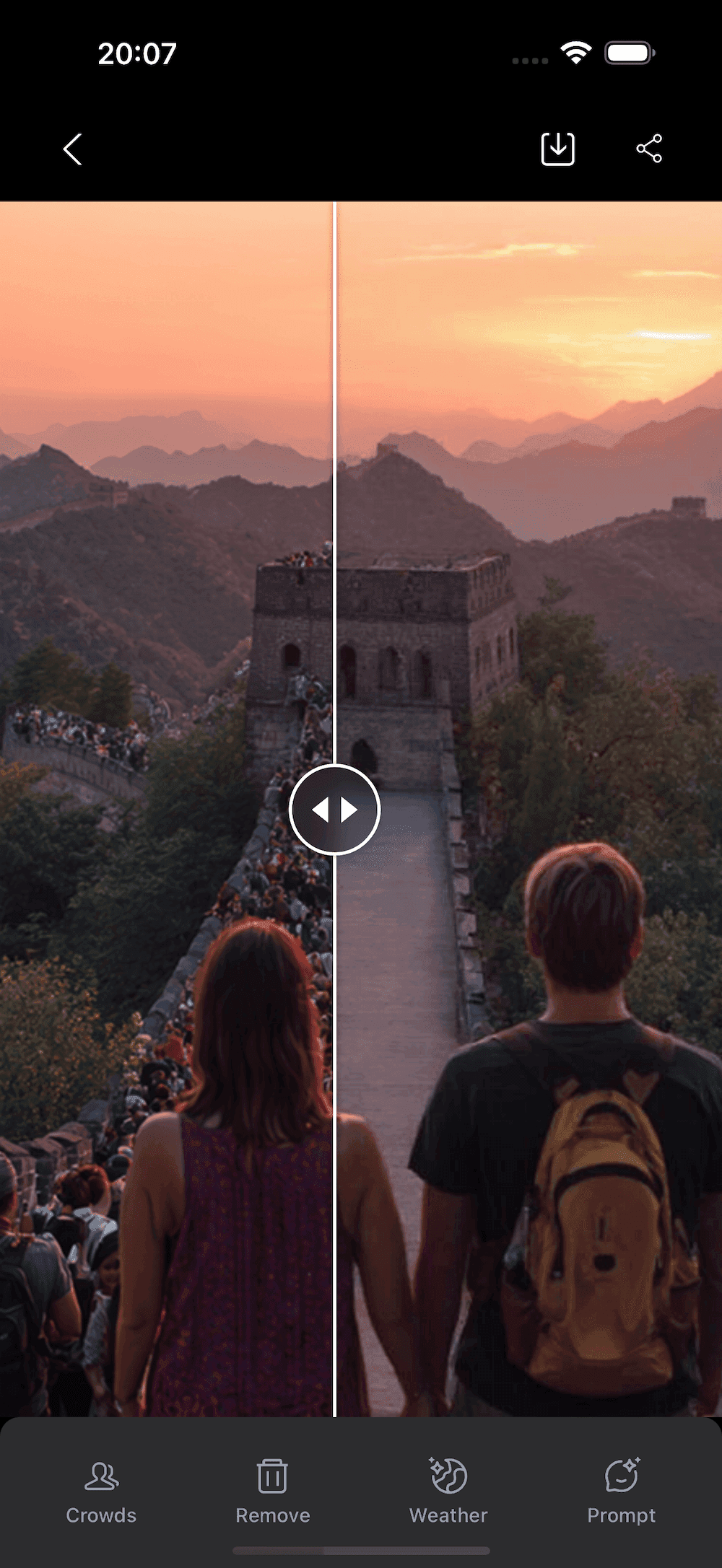
BanaSnap is built for the moment when you know what should change in a picture, but you do not want to open a professional editor and build the whole workflow yourself.
The product starts with a conversation. You can upload a real photo, type a request, or do both. BanaSnap's job is to understand the image, decide which generation path fits the task, return useful previews, and keep the editor available when you want precise control.
Start with the image, not the tool
If you upload a single photo and leave the text box empty, BanaSnap treats that as a request for analysis. It should look at the actual photo and respond with practical edit ideas.
That matters because the best suggestion for a selfie is different from the best suggestion for a product shot, a room photo, a poster draft, or a social post. A good first response should sound like someone looking at the same image with you and pointing out what can be improved.
Use the suggestions as one-tap prompts
After analysis, BanaSnap can offer a few clear next steps. For example:
- Improve lighting and skin texture while keeping the person natural
- Clean up background distractions without changing the main subject
- Make a product image feel sharper and more ready for a listing page
You can tap one of those suggestions or type your own instruction. The goal is to help you move from "this photo needs work" to a concrete edit request quickly.
Let the agent choose the generation path
BanaSnap does not ask users to pick a model. The agent decides what the request needs:
- Normal image edits for makeup, filters, object changes, background cleanup, weather changes, try-on, or hairstyle changes
- Deeper image generation when the task includes posters, layout, text, Chinese or other language handling, or guide-style visuals
- Upscaling when the job is mainly about making an image cleaner and higher resolution
- Text-to-image generation when there is no source photo
For multi-image requests, the agent can plan more than one run and return a set of images in the same conversation.
Preview before you commit
Generated images open in a focused preview. This is where you can compare outputs, download the one you like, or move the image into the editor.
Preview is especially useful for image sets. If one request produces several versions, you should be able to move through them in message order and keep context from the original conversation.
Open the editor when precision matters
Chat is the fastest way to get to a strong first version. The editor is for the moments when you want detailed control after seeing the result.
From the preview, click Edit to create an editable image asset and continue in the editor. That keeps the workflow simple: talk first, preview the generated result, then refine only when the image is worth refining.
A simple workflow to try
- Open BanaSnap and upload one photo.
- Leave the prompt empty to receive image-aware suggestions.
- Choose one suggestion or write your own edit request.
- Wait for the agent to plan and generate.
- Browse the previewed images.
- Download the best version or open it in the editor.
This is the core BanaSnap promise: bring one photo, say what you want, and let the product handle the planning layer before you need to touch detailed controls.